地址:https://common-buy.aliyun.com/?spm=a2c4e.11155515.0.0.DjCjOv&commodityCode=cas#/buy
第一步:

第二步:
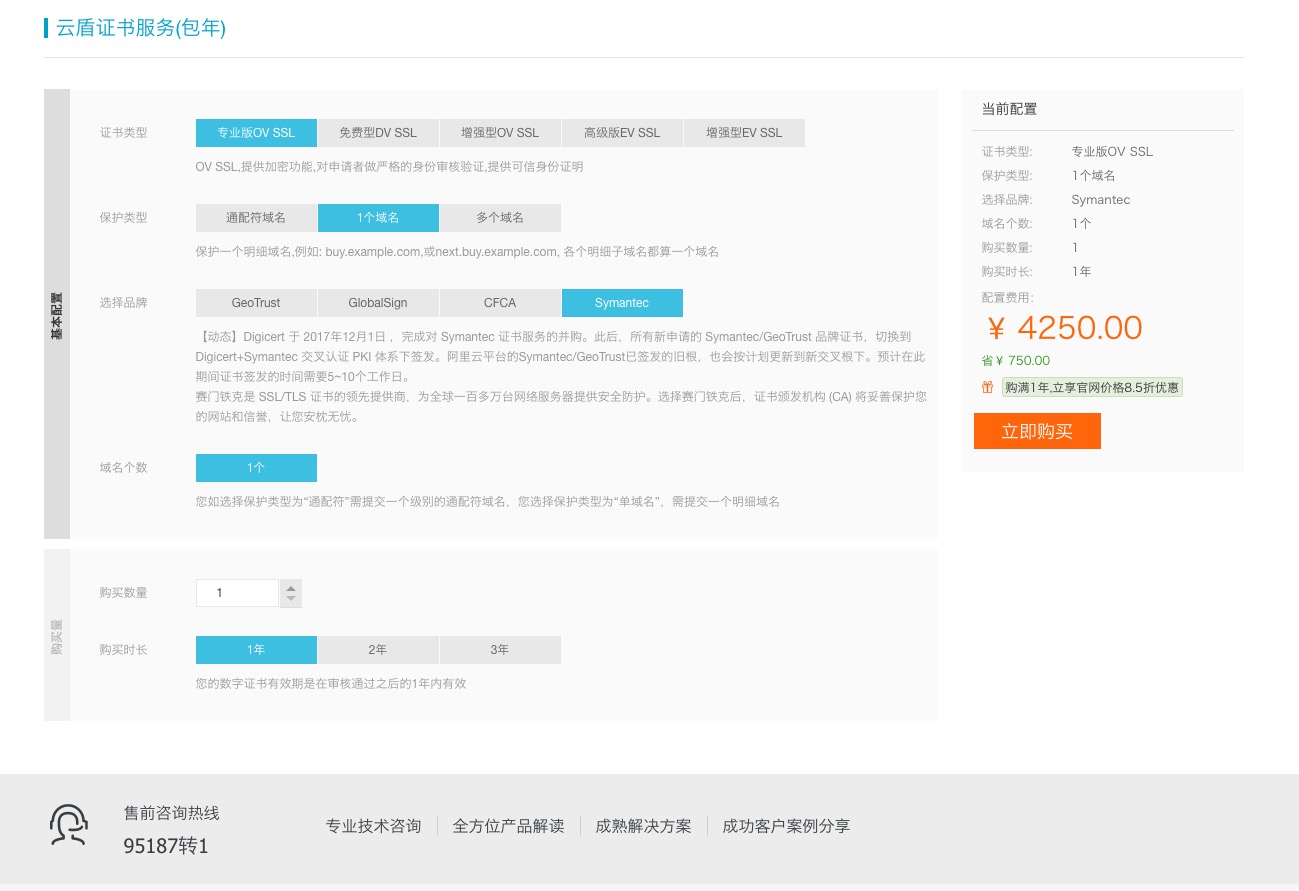
第三步:

第四步:点击证书控制台

第[……]
地址:https://common-buy.aliyun.com/?spm=a2c4e.11155515.0.0.DjCjOv&commodityCode=cas#/buy
第一步:
第二步:
第三步:
第四步:点击证书控制台
第[……]
|
1 2 3 4 5 6 7 8 9 10 11 12 13 14 15 16 17 18 19 20 21 22 23 24 25 26 27 28 29 30 31 32 33 34 35 36 37 38 39 40 41 42 43 44 45 46 47 48 |
const REGEX = /(\d{4})-(\d{2})-(\d{2})T(\d{2}):(\d{2}):(\d{2})/ /** * @function format time * @param val, format * @return {string} * @example * <template> * <div> * <span>{{item.time | formatTime('yyyy/MM/dd hh:mm:ss')}}</span> * </div> * </template> * import {formatTime} from '../../library/timeFormat' * export default { * filters: {formatTime} * } */ export const formatTime = (val, format) => { if (val) { /** * @instructions 如果不是时间戳格式,且含有字符 '-' 则将 '-' 替换成 '/' && 删除小数点及后面的数字 * @reason 将 '-' 替换成 '/' && 删除小数点及后面的数字 的原因是safari浏览器仅支持 '/' 隔开的时间格式 */ if (val.toString().indexOf('-') > 0) { val = val.replace(/T/g, ' ').replace(/\.[\d]{3}Z/, '').replace(/(-)/g, '/') // 将 '-' 替换成 '/' val = val.slice(0, val.indexOf('.')) // 删除小数点及后面的数字 } let date = new Date(val) date.setHours(date.getHours() + 8) const [whole, yy, MM, dd, hh, mm, ss] = date.toISOString().match(REGEX) const year = new Date().getFullYear() const month = new Date().getMonth() + 1 const dates = new Date().getDate() if (format) { return format .replace('yyyy', yy) .replace('yy', yy.slice(2)) .replace('MM', MM) .replace('dd', dd) .replace('hh', hh) .replace('mm', mm) .replace('ss', ss) } else { return [yy, MM, dd].join('-') + ' ' + [hh, mm, ss].join(':') } } else { return '--' } } |
|
1 2 3 4 5 6 7 8 9 10 11 12 13 14 15 16 17 18 19 20 21 22 23 24 25 26 27 28 29 30 31 32 33 34 35 36 37 38 39 40 41 42 43 44 45 46 47 48 49 50 51 52 53 54 55 |
首先克隆:git clone https://github.com/facebook/WebDriverAgent.git 在执行命令: ./Scripts/bootstrap.sh 时报错: Please make sure that you have Carthage installed (https://github.com/Carthage/Carthage) Note: We are expecting that carthage installed in /usr/local/bin/ 安装carthage:brew install carthage 执行 ./Scripts/bootstrap.sh 仍报同样的错,再次安装carthage提示: Warning: carthage 0.27.0 is already installed, it's just not linked. You can use `brew link carthage` to link this version. 执行:brew link carthage 报: Linking /usr/local/Cellar/carthage/0.27.0... Error: Permission denied @ dir_s_mkdir - /usr/local/Frameworks 提权:sudo brew link carthage 报: Error: Running Homebrew as root is extremely dangerous and no longer supported. As Homebrew does not drop privileges on installation you would be giving all build scripts full access to your system. 原因可能是我刚把系统升级到 macOS High Sierra 10.13.2 搜到一大把解决方法: 1、sudo chown -R $(whoami) $(brew --prefix)/* 2、sudo chown -R $(whoami) /usr/local/* 3、brew upgrade 4、Uninstall Homebrew: /usr/bin/ruby -e "$(curl -fsSL https://raw.githubusercontent.com/Homebrew/install/master/uninstall)" Then re-install it: /usr/bin/ruby -e "$(curl -fsSL https://raw.githubusercontent.com/Homebrew/install/master/install)" 第四个没试,前三个都试了一遍,brew link carthage仍然报错,但是 ./Scripts/bootstrap.sh 可以执行了。 依赖安装完以后,双击WebDriverAgent.xcodeproj这个文件,会在Xcode中对应打开。 紧接着证书签名: 勾选 Automatically manage signing 然后选择Team 登录你的 Apple ID 下载证书。 在TARGETS里面选中WebDriverAgentLib: <img src="http://skillnull.com/wp-content/uploads/2018/01/131514876676_.pic_hd-1.jpg" alt="" width="1878" height="1057" /> 在TARGETS里面选中WebDriverAgentRunner: <img src="http://skillnull.com/wp-content/uploads/2018/01/141514876772_.pic_hd.jpg" alt="" width="1878" height="1057" /> 报错了,修改BundleID: <img src="http://skillnull.com/wp-content/uploads/2018/01/111514876450_.pic_hd.jpg" alt="" width="1878" height="1057" /> <img src="http://skillnull.com/wp-content/uploads/2018/01/121514876645_.pic_.jpg" alt="" width="626" height="19" /> <img src="http://skillnull.com/wp-content/uploads/2018/01/151514877046_.pic_hd.jpg" alt="" width="1878" height="1057" /> 报错解决。 接着在菜单栏中选择Product=>Destination=>你的手机,Product=>Scheme=>WebDriverAgentRunner,最后Product=>Test 运行。 |
|
1 2 3 4 5 6 7 8 9 10 11 12 |
webpack 3.8.1 使用 extract-text-webpack-plugin 3.0.2 抽取css时失败,报错: ERROR in ./src/static/style/localTime.css Module parse failed: Unexpected token (1:0) You may need an appropriate loader to handle this file type. | .localTimeBox { | color: red; | } @ ./node_modules/style-loader!./src/static/style/localTime.css 4:14-42 webpack-build.config.js 配置为: |
|
1 2 3 4 5 6 7 8 9 10 11 |
module: { loaders: [ { test: /\.css$/, loader: ExtractTextPlugin.extract('style-loader', 'style-loader!css-loader', {publicPath: '../'}) } ] }, plugins: [ new ExtractTextPlugin('css/bundle.min.css', {allChunks: true}) ] |
解决方法:
将webpack-build.config.js 配置改为:
|
1 2 3 4 5 6 7 8 9 10 11 12 13 14 15 |
module: { loaders: [ { test: /\.css$/, loader: ExtractTextPlugin.extract({ fallback: 'style-loader', use: ['css-loader'], publicPath: '../' }) } ] }, plugins: [ new ExtractTextPlugin('css/bundle.min.css', {allChunks: true}) ] |
问题就解决了。[……]
|
1 2 3 4 5 6 7 8 9 10 11 12 13 14 15 16 17 18 19 20 21 22 23 24 25 |
一、安装 wget –no-check-certificate https://raw.githubusercontent.com/teddysun/shadowsocks_install/master/shadowsocks.sh chmod +x shadowsocks.sh ./shadowsocks.sh 2>&1 | tee shadowsocks.log 二、输入密码 Please enter password for shadowsocks-python (Default password: teddysun.com): input your password 三、输入端口 Please enter a port for shadowsocks-python [1-65535] (Default port: 8989):input your port 四、 这一步会给出一个列表,输入列表项前面的数字来选择一个加密方法 Which cipher you'd select(Default: aes-256-gcm): input a number 五、安装成功 Congratulations, Shadowsocks-python server install completed! Your Server IP : your server ip Your Server Port : your port Your Password : your password Your Encryption Method:your encryption method Welcome to visit:https://teddysun.com/342.html Enjoy it! |
接下来下载 shadowsocks客户端,服务地址、端口、密码、加密方式填好就可以用了。
|
1 2 3 4 5 6 7 8 9 10 11 |
六、卸载 ./shadowsocks.sh uninstall 七、ShadowSocks常用命令 后台启动: ssserver -c /etc/shadowsocks.json -d start 后台停止: ssserver -c /etc/shadowsocks.json -d stop 启动:/etc/init.d/shadowsocks start 停止:/etc/init.d/shadowsocks stop 重启:/etc/init.d/shadowsocks restart 状态:/etc/init.d/shadowsocks status |
|
1 2 3 4 5 6 7 8 9 10 11 12 13 14 15 16 17 18 19 20 21 22 23 24 25 26 27 28 29 30 31 32 33 34 35 36 37 38 39 40 41 42 43 44 |
拉取远端仓库代码: 如果本地已经存在文件夹,先cd进去,然后敲命令: git fetch (作用是拉取远端仓库里的代码) git merge (作用是将远端仓库里的代码与本地仓库里的代码合并,如果有冲突会提示,这时候需要讲不正确的代码删除) 提交本地仓库的代码到远端仓库: git status (作用是查看仓库的状态) git add . (监控本地仓库的状态树,将本地仓库的所有变化提交到暂存区,包括文件内容修改modified以及新文件new,但是不包括被删除的文件) || git add -u(小写的u,仅监控已经被add的文件(即 tracked file),会将被修改的文件提交到暂存区。add -u不会提交新文件(untracked file) || git add -A (是前面两个功能的集合) git commit -m"备注信息" (作用是将代码提交到本地仓库) git log (查看git日志) git push (作用是将代码提交到远端服务器仓库) 这时候如果提示有冲突的话,我们就需要执行 git fetch 和 git merge 命令了,处理完冲突以后再重新push。 如果是第一次向远端仓库提交代码,需要执行以下命令: 首先要进入项目的文件夹,然后 git init (作用是创建本地仓库,加将会在文件夹下创建一个 .git 文件夹,.git 文件夹里存储了所有版本信息、标记等内容。注:如果整个项目文件夹是拷贝过来的,这时候需要先将文件夹内的 .git 文件夹删除后再执行init) git remote add origin git@192.168.19.154:TG/zhibo.git(作用是将本地仓库与远程仓库关联起来。如果不执行这个命令的话,每次push的时候都要指定远程服务器的地址。) 然后再执行提交命令。 版本回退: git reset --hard HEAD^ //回退到上个版本 git reset --hard HEAD^^ //回退到上上个版本 git reset --hard HEAD~100 //回退到前100个版本 git reflog //查看版本信息 git reset --hard 版本号 //回退到指定版本 用户名和邮箱: git config user.name //查看当前用户名 git config user.email //查看当前邮箱 git config --global user.name "your name that want to change" // 更改用户名 git config --global user.email xxx@xxx.com // 更改邮箱 操作远程仓库: git remote -v //查看当前仓库 git remote add <name> <url> //添加远程仓库 git remote set-url <name> <url> //切换远程仓库地址 git remote rm <name> //删除远程仓库 |
|
1 2 3 4 5 6 7 8 9 10 |
微信webview内置了调整字体大小的功能,用户可以根据实际情况进行调节。 但是这也会导致字体大小改变以后,出现页面布局错乱的情况, 目前iOS的解决方案是覆盖掉微信的样式: body { /* IOS禁止微信调整字体大小 */ -webkit-text-size-adjust: 100% !important; } 安卓的解决方案是通过 WeixinJSBridge 对象将网页的字体大小设置为默认大小, 并且重写设置字体大小的方法,让用户不能在该网页下设置字体大小: |
|
1 2 3 4 5 6 7 8 9 10 11 12 13 14 15 16 17 18 19 20 21 22 23 24 25 26 27 28 29 30 31 32 33 34 35 36 37 38 39 40 41 42 43 44 45 46 47 48 49 |
/* * android禁止微信浏览器调整字体大小 * 这种方法会导致网页延迟大约1S */ (function () { if (typeof WeixinJSBridge == "object" && typeof WeixinJSBridge.invoke == "function") { handleFontSize(); } else { if (document.addEventListener) { document.addEventListener("WeixinJSBridgeReady", handleFontSize, false); } else if (document.attachEvent) { document.attachEvent("WeixinJSBridgeReady", handleFontSize); document.attachEvent("onWeixinJSBridgeReady", handleFontSize); } } function handleFontSize() { // 设置网页字体为默认大小 WeixinJSBridge.invoke('setFontSizeCallback', { 'fontSize': 0 }); // 重写设置网页字体大小的事件 WeixinJSBridge.on('menu:setfont', function () { WeixinJSBridge.invoke('setFontSizeCallback', { 'fontSize': 0 }); }); } })(); |