首先,一个小程序同时只能有一个WebSocket连接,如果当前已经存在一个WebSocket连接,会关闭当前连接,并重新建立一个连接。 其次,如果使用了appID,协议必须是 wss://… 最近团队用小程序做行情,在连接socket的时候,发现在还没有进行subscribe的情况下,就直接进行[……]
作者:SKILLNULL
JS让任意图片垂直水平居中且页面不滚动
JS判断IE版本并在页面显示内容
禁止 iphone 网页上下拖动露底
文本行的斑马条纹
自定义优雅的文本下划线

Vue根据URL传参来控制全局 console.log 的开关
如果你的项目中console.log了很多信息,但是发到生产环境上又不想打印这些信息,这时候就需要设置一个全局变量,如:debug,
用正则匹配一下参数:
|
1 2 3 4 5 6 7 8 9 10 11 12 13 14 15 16 17 18 19 20 21 22 23 24 25 26 27 28 29 30 31 32 33 34 35 36 37 38 39 40 41 42 43 44 45 46 47 48 49 50 |
const getQueryStr = (name) => { var reg = new RegExp("(^|&)" + name + "=([^&]*)(&|$)", "i"); var r = window.location.search.substr(1).match(reg); if (r != null) return unescape(r[2]); return null; }; 当链接中含有这个参数时,将debug的状态置为true,这时console.log是正常可打印状态,否则将debug的状态置为false, 这时重写console.log函数: console.log = function () { return false; } 这时的全局变量就可以用在整个项目中了,用来控制一些调试窗口的显隐。 在Vue中可以直写在stores/index.js中,当然,写在其他入口文件里也可以: const getQueryStr = (name) => { var reg = new RegExp("(^|&)" + name + "=([^&]*)(&|$)", "i"); var r = window.location.search.substr(1).match(reg); if (r != null) return unescape(r[2]); return null; }; /* 若链接后面带上参数 envFlag=monitor * 则将 debug 置为true,否则置为false */ const monitor = 'monitor'; const envFlag = getQueryStr('envFlag'); let debug = monitor ? true : false; if (envFlag === 'monitor') { console.log("%cNow You Can Console Log...", "color:red;font-size:18px;font-style:oblique;"); debug = monitor; } else { debug = ''; console.log = function () { return false; } } const state = {debug: debug}; export const store = new vuex.Store({state, mutations}); 这时候如果你想控制一个组件的显示或隐藏,只需要在vuex的getters中声明一下就可以使用变量debug了: <monitor v-show="debug"></monitor> vuex: { getters: { <span style="color: #ff0000;">debug: state => state.debug</span> } } 做完以上的工作后,在URL后面带上参数 <strong>envFlag=monitor </strong>就可以看到组件 monitor 被显示出来,同时打开控制台的话, 就可以看到项目所有的 console.log 信息。 |
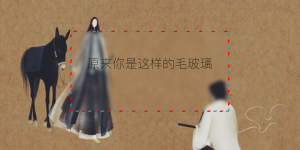
原来你是这样的毛玻璃
以前写毛玻璃用的都是图层覆盖,看了 LEA VEROU 的《CSS揭秘》后才发现还有更优雅的毛玻璃:
|
1 2 3 4 5 6 7 8 9 10 11 12 13 14 15 16 17 18 19 20 21 22 23 24 25 26 27 28 29 30 31 32 33 34 35 36 37 38 39 40 41 42 43 44 45 46 47 48 49 50 51 52 53 54 55 56 57 58 59 60 61 62 63 |
<!DOCTYPE html> <html> <head> <title>原来你是这样的毛玻璃</title> <meta charset="utf-8"> </head> <style> @keyframes ants { to { background-position: 100%; } } body, main:before { background: url("demoImages/1.jpg") 0 /cover fixed; } main { position: relative; background: hsla(0, 0%, 100%, .3); overflow: hidden; display: block; margin: 200px auto; width: 1000px; height: 500px; } main:before { content: ''; position: absolute; top: 0%; right: 0%; left: 0%; bottom: 0%; filter: blur(10px); margin: -30px; } .demoBox { border: .5em solid transparent; background: linear-gradient(white, white) padding-box, repeating-linear-gradient(-45deg, red 0, red 12.5%, transparent 0, transparent 25%, #58a 0, #58a 37.5%, transparent 0, transparent 50%) 0/5em 5em; animation: ants 12s linear infinite; } .demo { position: relative; z-index: 999; font-size: 5em; text-align: center; line-height: 5; font-weight: 100; } </style> <body> <main class="demoBox"> <div class="demo">原来你是这样的毛玻璃</div> </main> </body> </html> |
效果图:
CSS3边框会动的信封
|
1 2 3 4 5 6 7 8 9 10 11 12 13 14 15 16 17 18 19 20 21 22 23 24 25 26 27 28 29 30 |
<!DOCTYPE html> <html> <head> <title>酷炫的CSS3</title> <meta charset="utf-8"> </head> <style> @keyframes ants { to { background-position: 100%; } } .demo { display: block; margin: 200px auto; width: 300px; height: 200px; border: 1em solid transparent; background: linear-gradient(white, white) padding-box, repeating-linear-gradient(-45deg, red 0, red 12.5%, transparent 0, transparent 25%, #58a 0, #58a 37.5%, transparent 0, transparent 50%) 0/5em 5em; animation: ants 12s linear infinite; } </style> <body> <div class="demo"></div> </body> </html> |
静态效果图:

判断当前系统当前浏览器是否安装启用 Adobe Flash Player,检查在chrome中的状态
一、判断当前所在系统
|
1 2 3 4 5 6 7 8 9 10 11 12 13 14 15 16 17 18 19 20 21 22 23 24 25 |
let sUserAgent = navigator.userAgent; let isWin = (navigator.platform == "Win32") || (navigator.platform == "Windows"); let isMac = (navigator.platform == "Mac68K") || (navigator.platform == "MacPPC") || (navigator.platform == "Macintosh") || (navigator.platform == "MacIntel"); if (isMac) return "Mac"; let isUnix = (navigator.platform == "X11") && !isWin && !isMac; if (isUnix) return "Unix"; let isLinux = (String(navigator.platform).indexOf("Linux") > -1); if (isLinux) return "Linux"; if (isWin) { let isWin2K = sUserAgent.indexOf("Windows NT 5.0") > -1 || sUserAgent.indexOf("Windows 2000") > -1; if (isWin2K) return "Windows2000"; let isWinXP = sUserAgent.indexOf("Windows NT 5.1") > -1 || sUserAgent.indexOf("Windows XP") > -1; if (isWinXP) return "WindowsXP"; let isWin2003 = sUserAgent.indexOf("Windows NT 5.2") > -1 || sUserAgent.indexOf("Windows 2003") > -1; if (isWin2003) return "Windows2003"; let isWinVista = sUserAgent.indexOf("Windows NT 6.0") > -1 || sUserAgent.indexOf("Windows Vista") > -1; if (isWinVista) return "WindowsVista"; let isWin7 = sUserAgent.indexOf("Windows NT 6.1") > -1 || sUserAgent.indexOf("Windows 7") > -1; if (isWin7) return "Windows7"; let isWin8 = sUserAgent.indexOf("Windows NT 6.2") > -1 || sUserAgent.indexOf("Windows 8") > -1; if (isWin8) return "Windows8"; let isWin10 = sUserAgent.indexOf("Windows NT 10.0") > -1 || sUserAgent.indexOf("Windows 10") > -1; if (isWin10) return "Windows10"; } return "OtherOS"; |
二、判断当前浏览器内核
|
1 2 3 4 5 6 7 8 9 10 11 12 13 14 15 16 17 |
let Sys = {}; let ua = navigator.userAgent.toLowerCase(); let s; (s = ua.match(/msie ([\d.]+)/)) ? Sys.ie = s[1] : (s = ua.match(/firefox\/([\d.]+)/)) ? Sys.firefox = s[1] : (s = ua.match(/chrome\/([\d.]+)/)) ? Sys.chrome = s[1] : (s = ua.match(/version\/([\d.]+).*safari/)) ? Sys.safari = s[1] : 0; if (Sys.ie) { console.log('ie core') } if (Sys.firefox) { console.log('gecko core') } if (Sys.chrome || Sys.safari) { console.log('webkit core') } |
三、判断浏览器是否安装 Adobe Flash Player
[crayon-69a80daa3e53c[……]